SIS: Gradebook Assignments
Gradebook Assignments
Gradebook assignments are used to record student work and calculate marking period grades. Assignments must be added to a Gradebook Category.
Add a Gradebook Assignment

1. Click Setup button2. Select a Category3. Click Add Assignment4. Google Classroom - Click Import AssignmentsORFrom the gradebook main screen,1.Microsoft Teams - Click Import > From Microsoft Teams2. Click Add Assignment button3. Complete the Assignment required fields:
- Category*
- Assignment Name*
- Due Date*
4. Complete any additional fields as needed.
| Field | Description |
|---|---|
| Category | Select the category for the assignment. * Category Assignment Defaults will be applied to Max Points, Bonus, Multiplier, Allow Comment, Display on Gradebook & Publish to Portal. |
| Assignment | Enter the assignment name. |
| Max Points | *Maximum score students can earn. |
| Bonus | *Additional points available beyond the maximum score. |
| Multiplier | *Adjusts the assignment's weight. |
| Due Date | Assignment due date. |
| Description | Information visible to students and parents on the portal. |
| Allow Comment | *Allows comments to be entered with assignment scores. |
| Publish Date | Controls when the assignment appears on the portal. |
| Publish on Portal | *Determines what assignment information is displayed on the portal. |
| Display on Gradebook | *Makes the assignment visible in the gradebook. |
| Exclude Students | Removes selected students from the assignment and hides it from their portal view. |
| Learning Standards | Links standards or tasks to the assignment. |
Choose one of the following:
Save – Saves the assignment to the current class.
Save and Copy – Saves the assignment and allows it to be copied to other classes.
Reset – Clears all entries.
Cancel – Closes the window without saving.
Additional Resources
Google Classroom
Microsoft Teams Gradebook
Copy an Assignment
Individual Assignments
- Add or Edit an assignment.
- Click Save & Copy.
- Select the additional class(es) that should receive the assignment.
- Update the due date for each class, if needed.
- Click Save.
Multiple Assignments
Restore Deleted Assignments
1. Click Setup button.
2. Click Restore Assignments button.3. Click Yes to continue.
Import Assignments and Scores from CSV
Getting Started
Export Gradebook
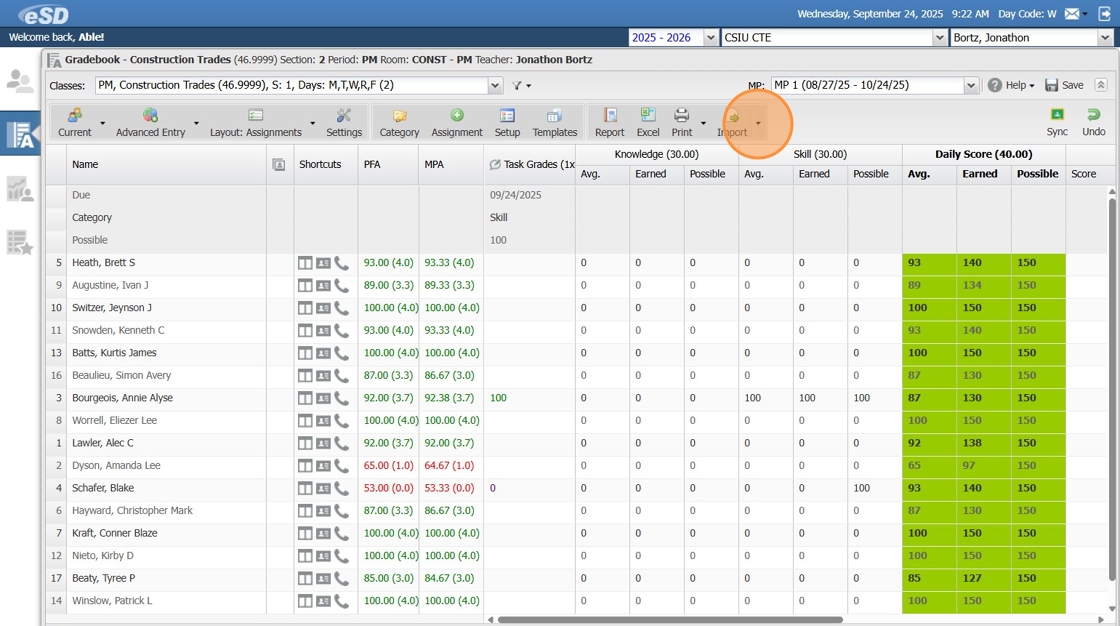
1. Open Teacher Connect Gradebook and Click "Import"
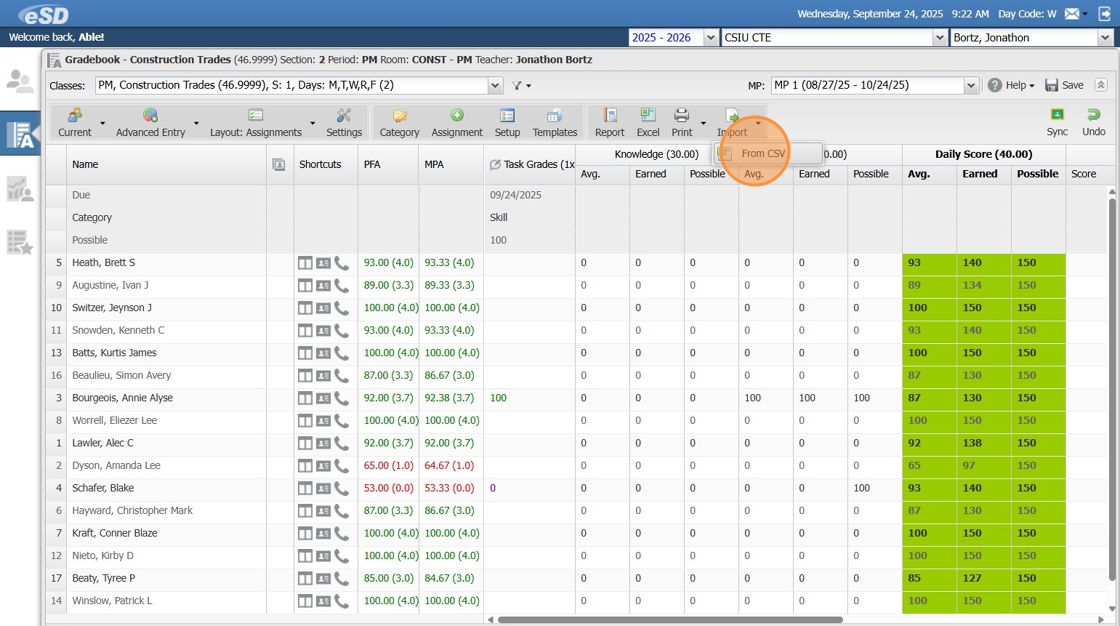
2. Click "From CSV"
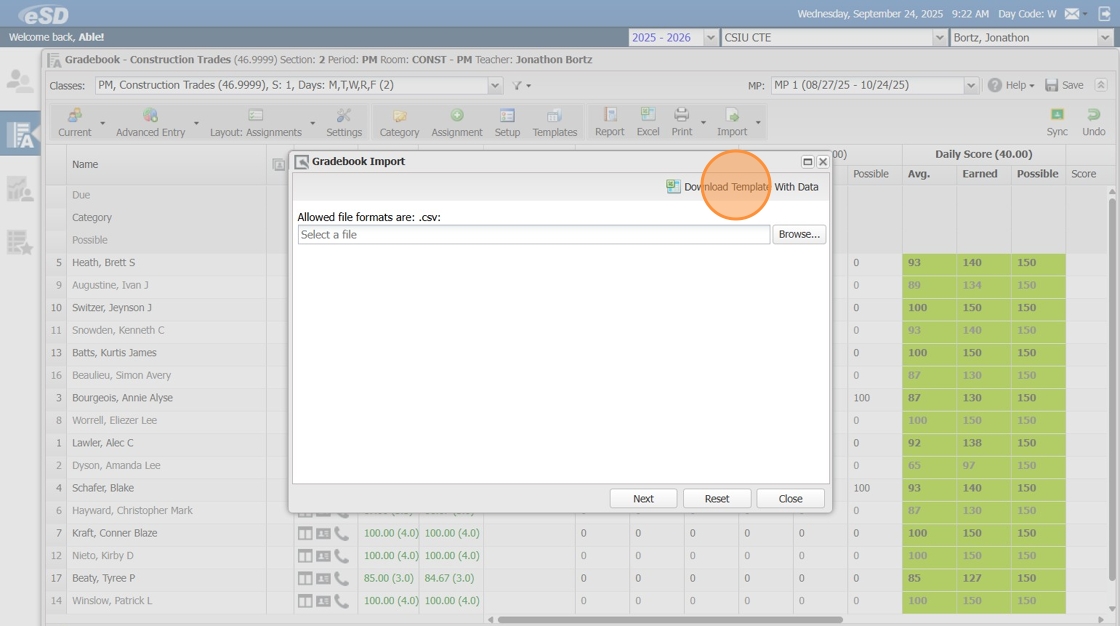
3. Click "Download Template With Data"
2. Click "From CSV"
3. Click "Download Template With Data"
Update Gradebook Template
1. Add Assignment Names, Due Dates, Possible Points and Assignment Scores
2. Save the CSV file.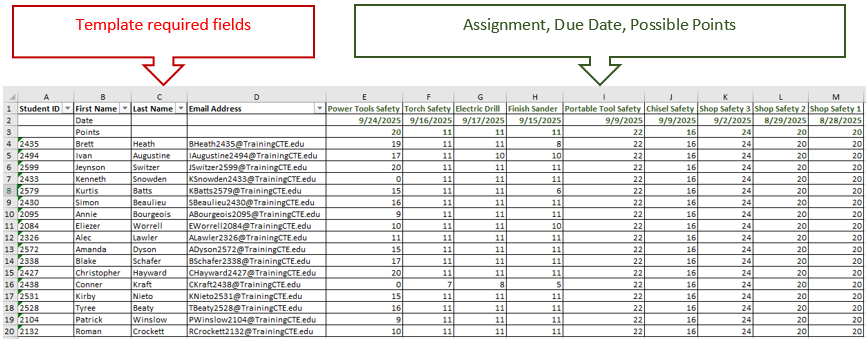
1. Add Assignment Names, Due Dates, Possible Points and Assignment Scores
Import Gradebook
Import Assignments
1. Click "Import", then click Browse.
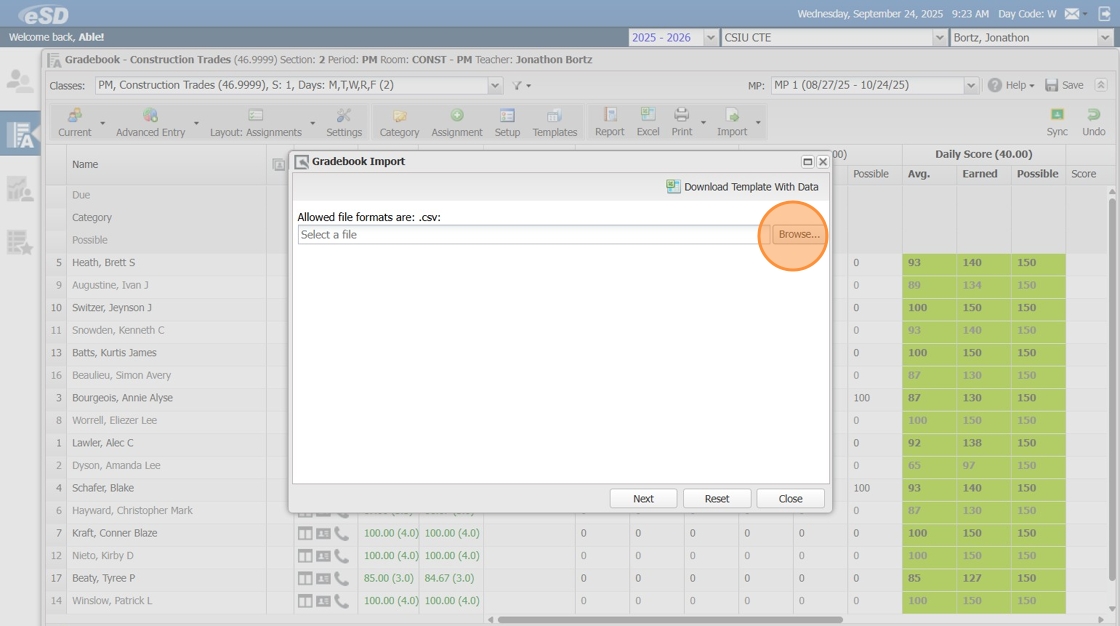
2. Select the Gradebook Template CSV file, then click "Next"
 Note: The file path of the import will display c:\fakepath\Filename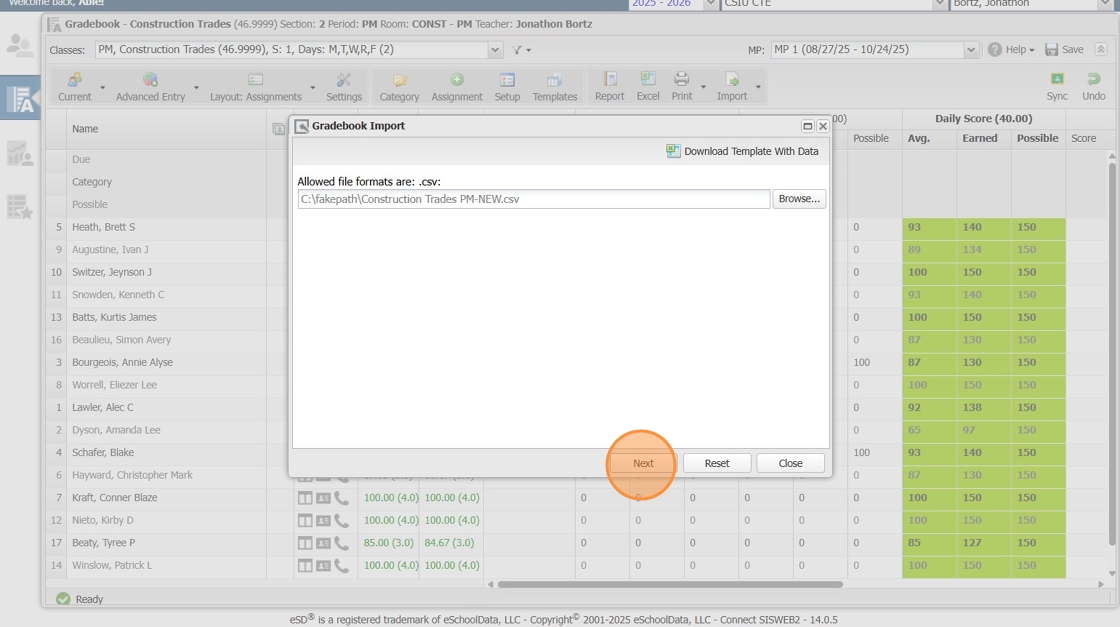
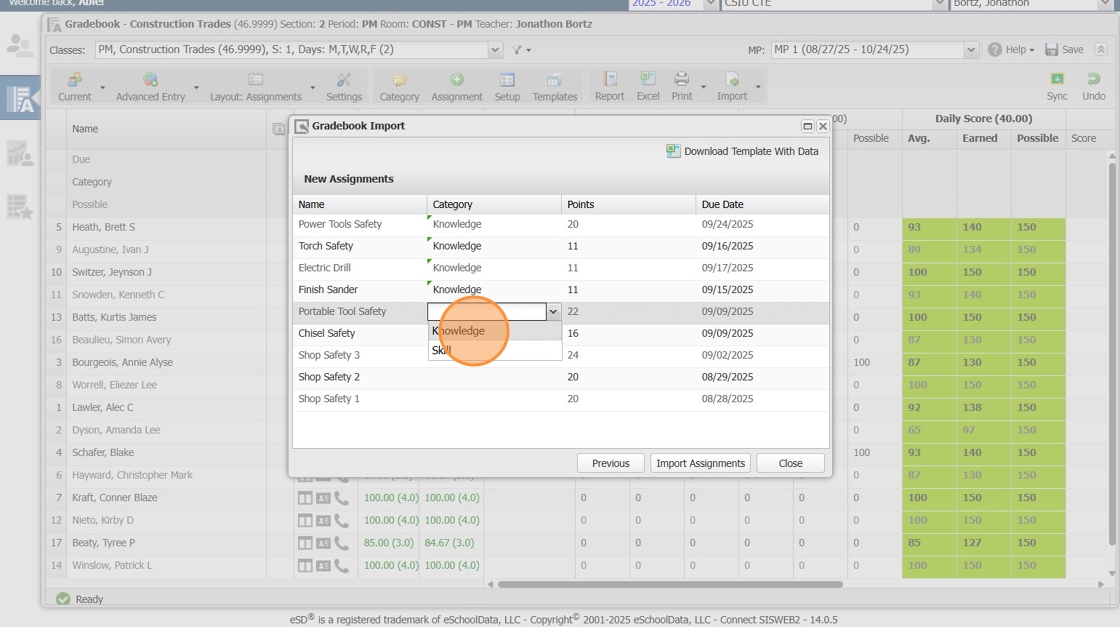
3. Click and select the "Gradebook Category" for each assignment
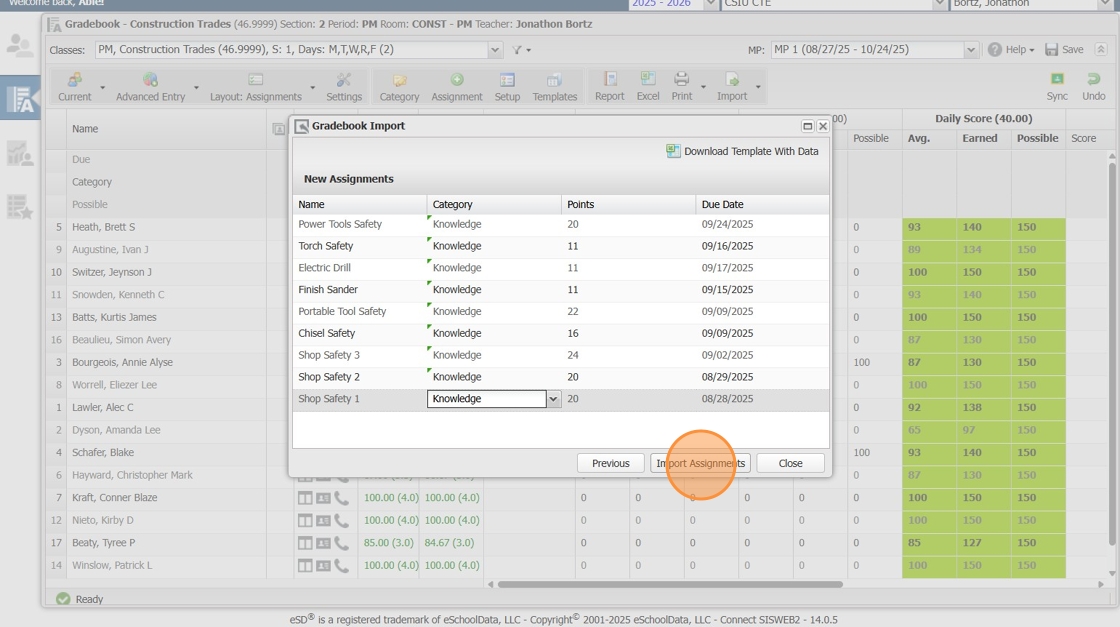
4. Click "Import Assignments"
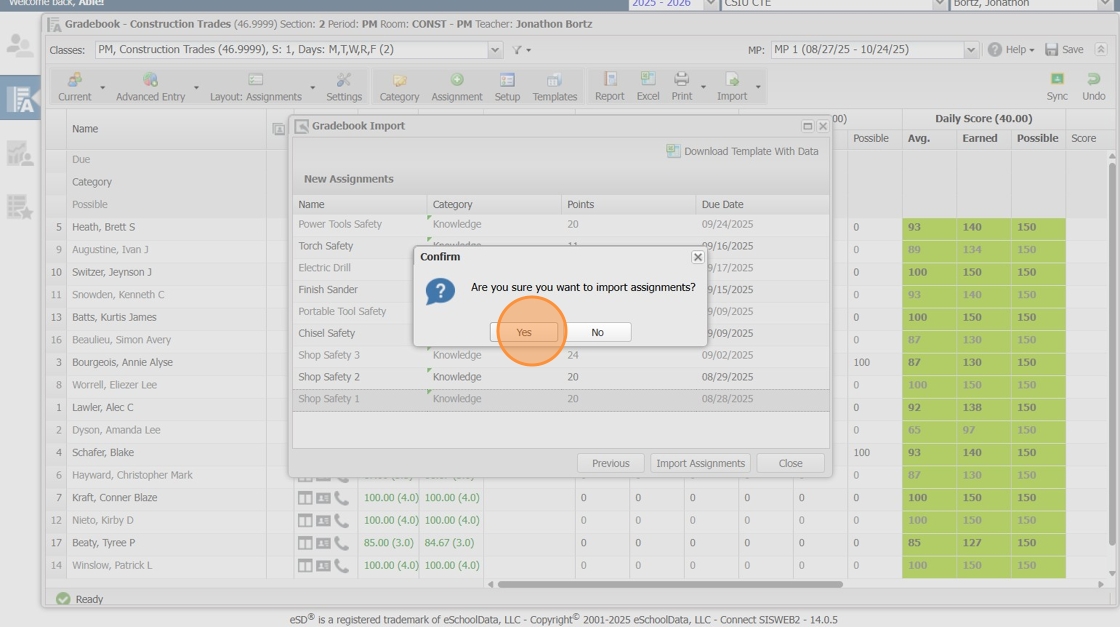
5. Click "Yes" to import assignments.
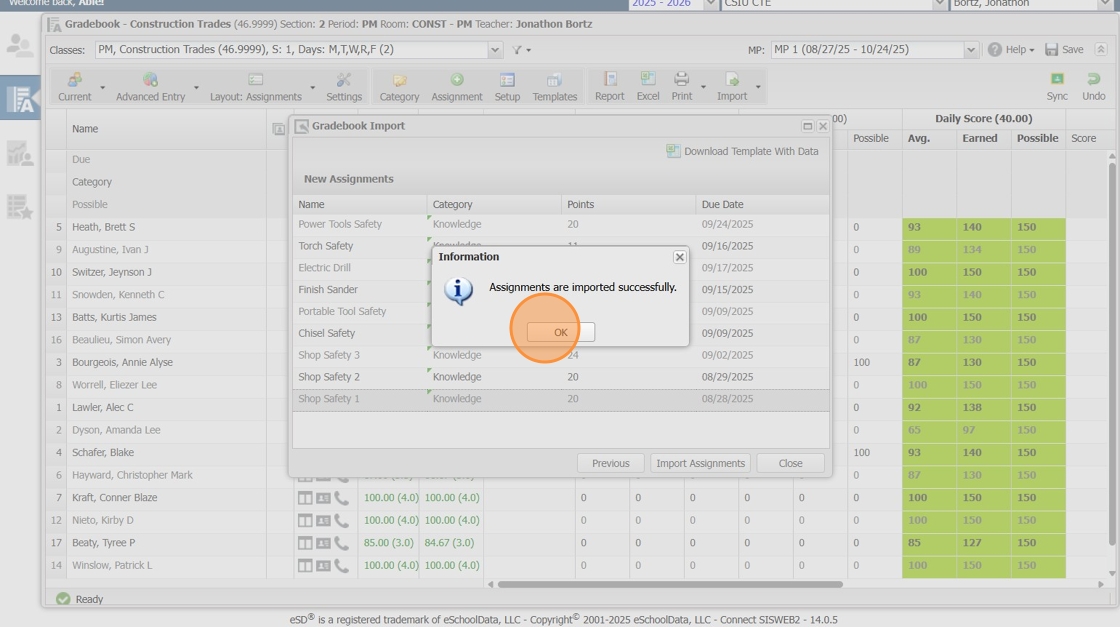
6. Click "OK" to finish.
Import Assignment ScoresThe next steps will import assignment scores from the template.
1. Review the "Assignment Scores" from the import file
Scores listed in RED are invalid and will not be imported.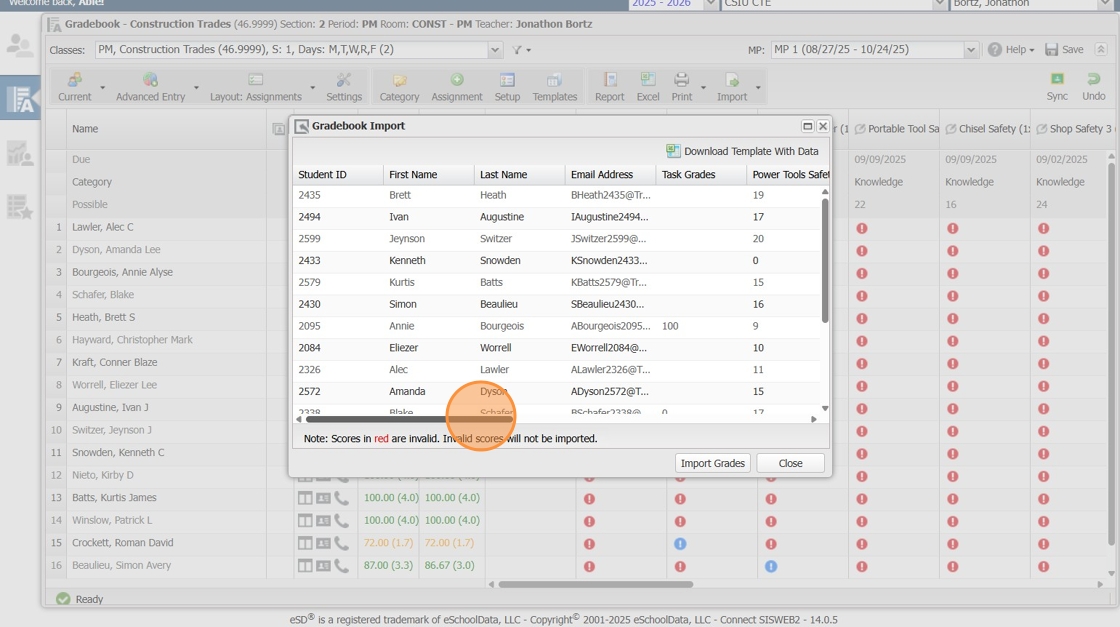
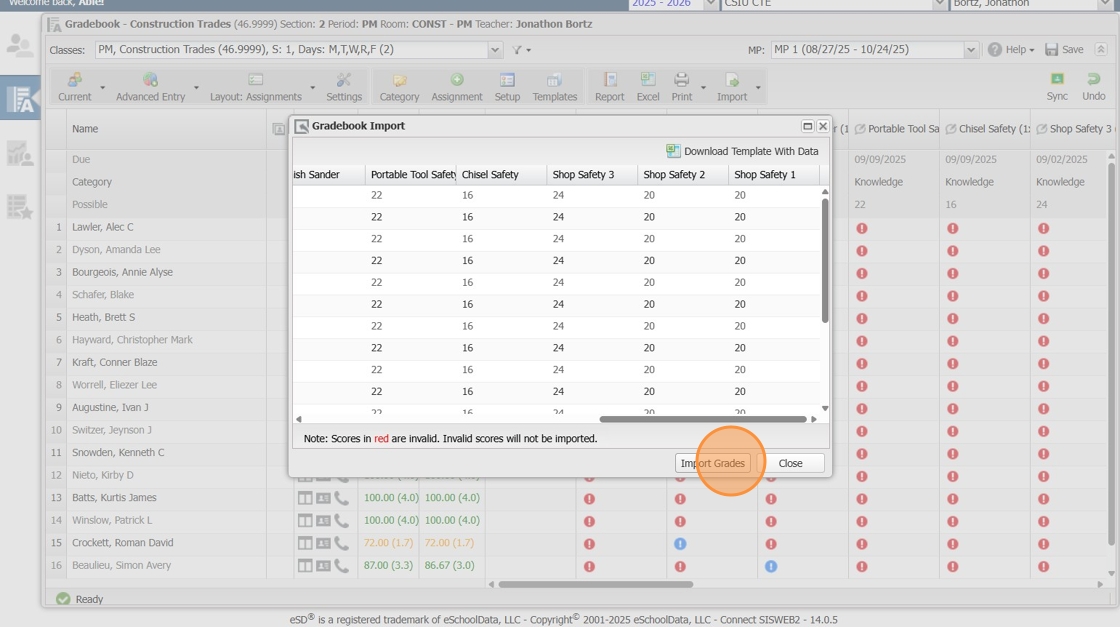
2. Click "Import Grades"
3. Click "Yes" to confirm import.
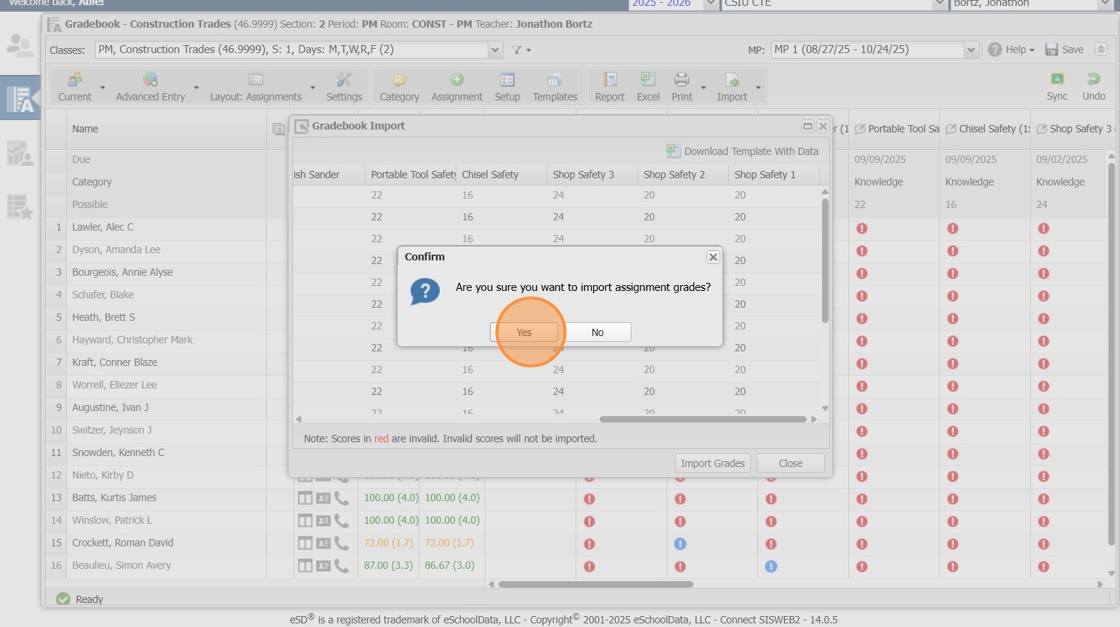
4. Click "Close" to complete the import process screen.
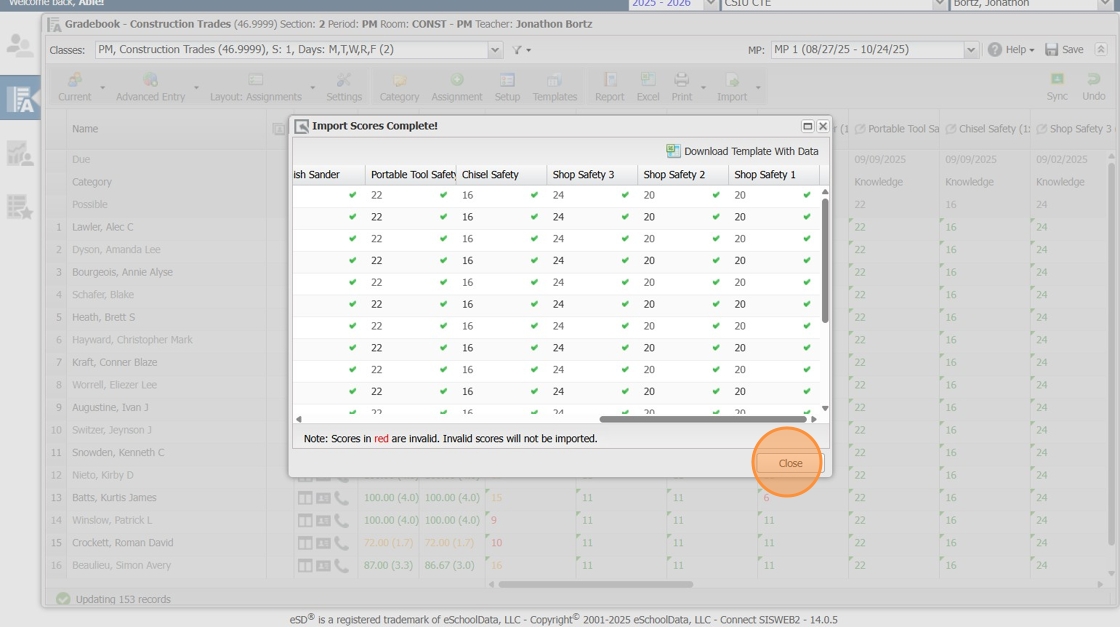
5. Review and Save the gradebook.
2. Select the Gradebook Template CSV file, then click "Next"
3. Click and select the "Gradebook Category" for each assignment
4. Click "Import Assignments"
5. Click "Yes" to import assignments.
6. Click "OK" to finish.
The next steps will import assignment scores from the template.
2. Click "Import Grades"
3. Click "Yes" to confirm import.
4. Click "Close" to complete the import process screen.