SCView FAQs - General
The following is a list of common questions and answers.
Q: Why can't I append a page to an existing document in Chrome?
A: After verifying you have the appropriate permissions, you might have a browser extension installed that is causing this issue. The most common browser extension that causes this issue is GoGuardian. If you can disable the extension the system should let you append again. However, this may have been installed by your tech department. You might need to reach out to your tech department and have them review the content security policy header in order to whitelist SCView.
Q: Why am I getting an error when attaching a document. Error states that the PDF may be secure, corrupt, or inaccessible.
A: This usually happens when a PDF has some kind of security appended to it. To strip out the security where you can upload it into SCView, do the following:
1. Open the PDF Document.2. Print as PDF to your computer.3. Upload the newly saved file from your computer.
Q: After I click the SCView icon in FIS, my database name defaults to an incorrect name (usually with PA at the end). How do I get this updated to my correct database name?
A: The CSIU preloads the database name for easier data entry. To verify and/or update your database name, do the following.
1. Go to FIS > System tab > Directories > Third Party API Configuration.2. Select the SCView link with General as the product.3. Verify/update your database name in the Database name field.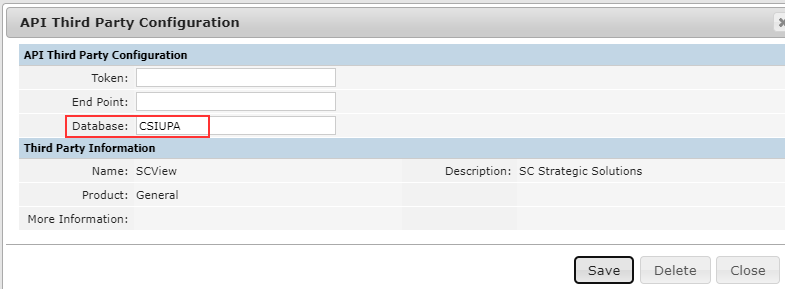 4. Click the SAVE button.
Q: How do I recover a document that I deleted from the SCView system?
A: To recover/restore a document that you deleted from SCView, do the following:
1. Go to SCView > Admin > Auditing.
2. Locate the document that you want to recover.
TIP: Use the filter options. Example: Enter 'Deleted' in the Detail column to bring up a list of documents that have been deleted from the SCView system.
3. Right click on the Document ID and select Recover Document option. This restores the document and you should be able to locate it in the Search area again.
Q: Will a link in an email notification expire?
A: Yes, expirations will depend on the type of form. Please see below for specifications:
- Standalone form (via email): 30 days
- Form Groups via email return link: 30 days
If the form
group is part of a form campaign, the expiration is based on:
-
Once the form is submitted, if the form group instance does not have a "submitted
date" => the link does not expire
- Once the form is submitted, if the form group instance does have a "submitted
date" => "Submitted date" + "Additional Expiration
Days" configured for the form group
- ConfiguredEndDate => Campaign EndDate + form group instance "Additional
Expiration Days"
If the form group is not
part of a campaign, the expiration is based on:
-
Once the form is submitted, if the form group instance does not have a "submitted
date" => does not expire
- Once the form is submitted, if the form group instance does have a "submitted
date" => "Submitted date" + "Additional Expiration Days"
configured for the form group
- If the form group instance does have a "configured end date" => Form group instance CreatedDateTime + configured form
group "Instance Viewable Days"