SmartSub: How to Add Third Party Vendor Subs to a District's Account
Follow these steps to add a third-party vendor's substitute staff to a district's list of available substitutes.
1. Navigate to https://smartsub.com/home
2. Click "Client Admin".
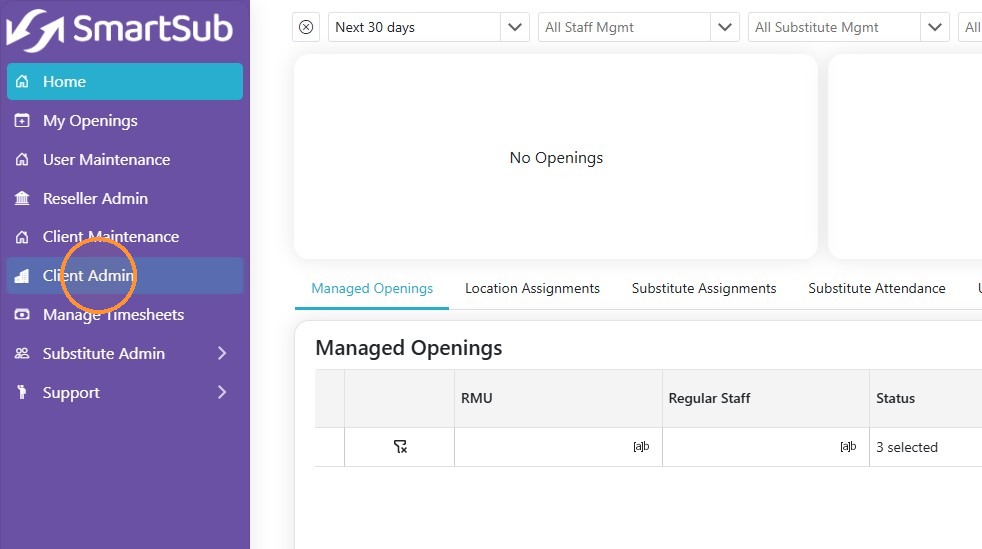
3. Click your substitute list.
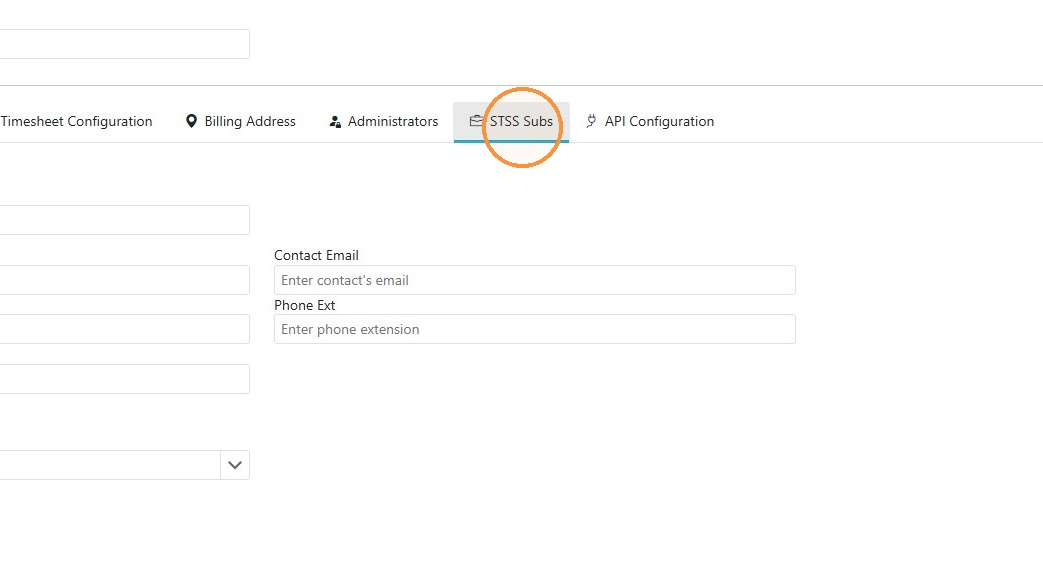
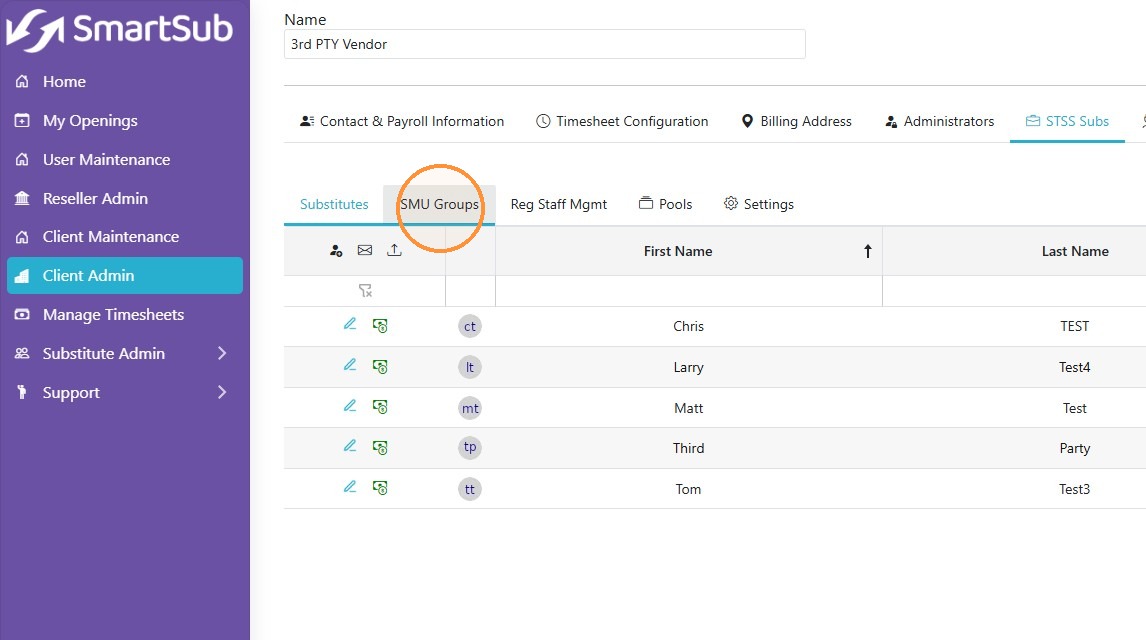
4. Click "SMU Groups".
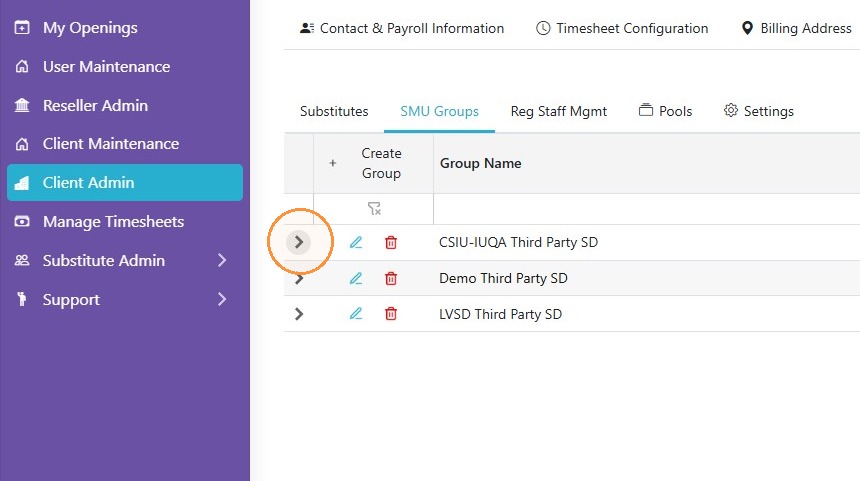
5. Locate the district that you'd like to assign your subs and click the > symbol.
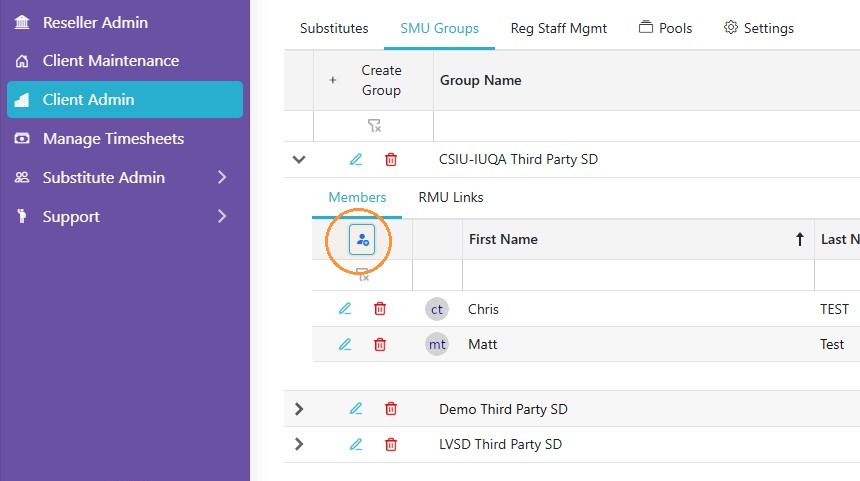
6. Under Members, click the person icon to open a list of available substitutes.
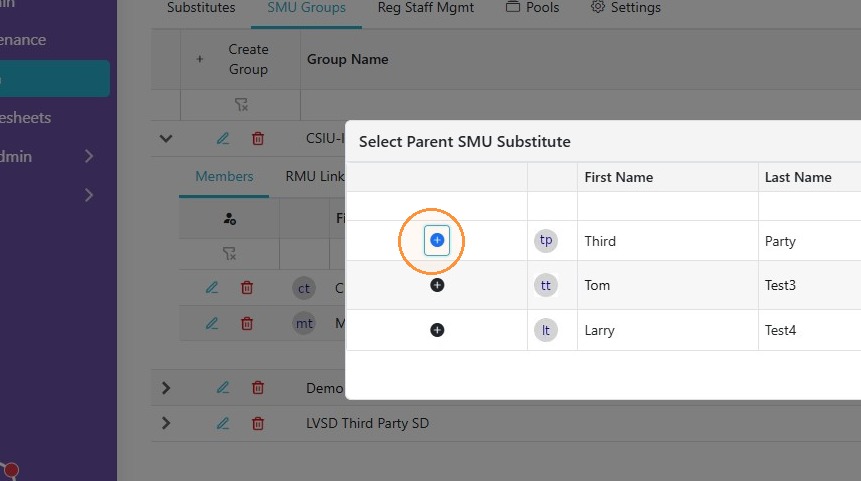
7. Click the add member button next to the substitute you'd like to add to this district's account. This opens the substitute's eligibility screen.
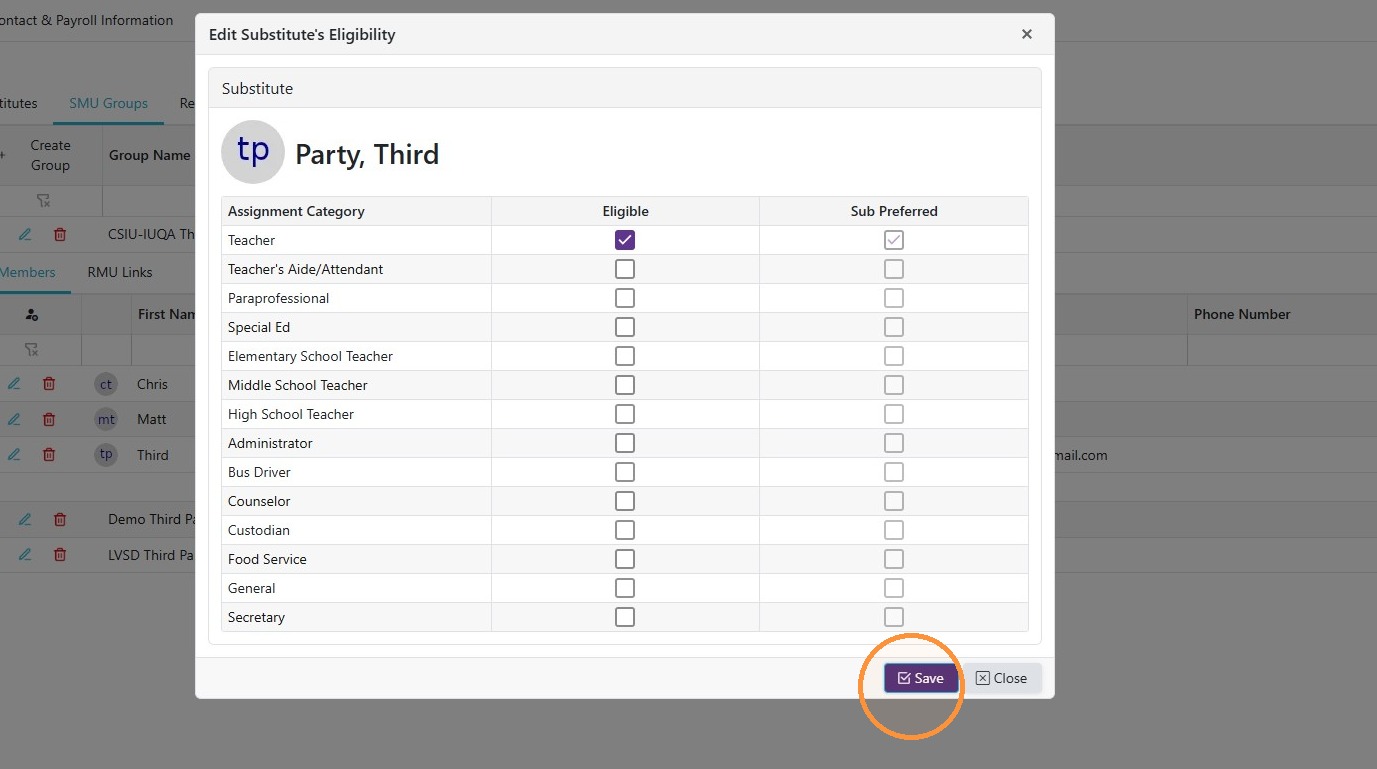
8. On the Edit Substitute's Eligibility screen, modify any of the substitute's eligible assignments and click the SAVE button.
Video Instructions